


The Strategic Guide to Resolving Negative Inventory in QuickBooks Desktop and Online
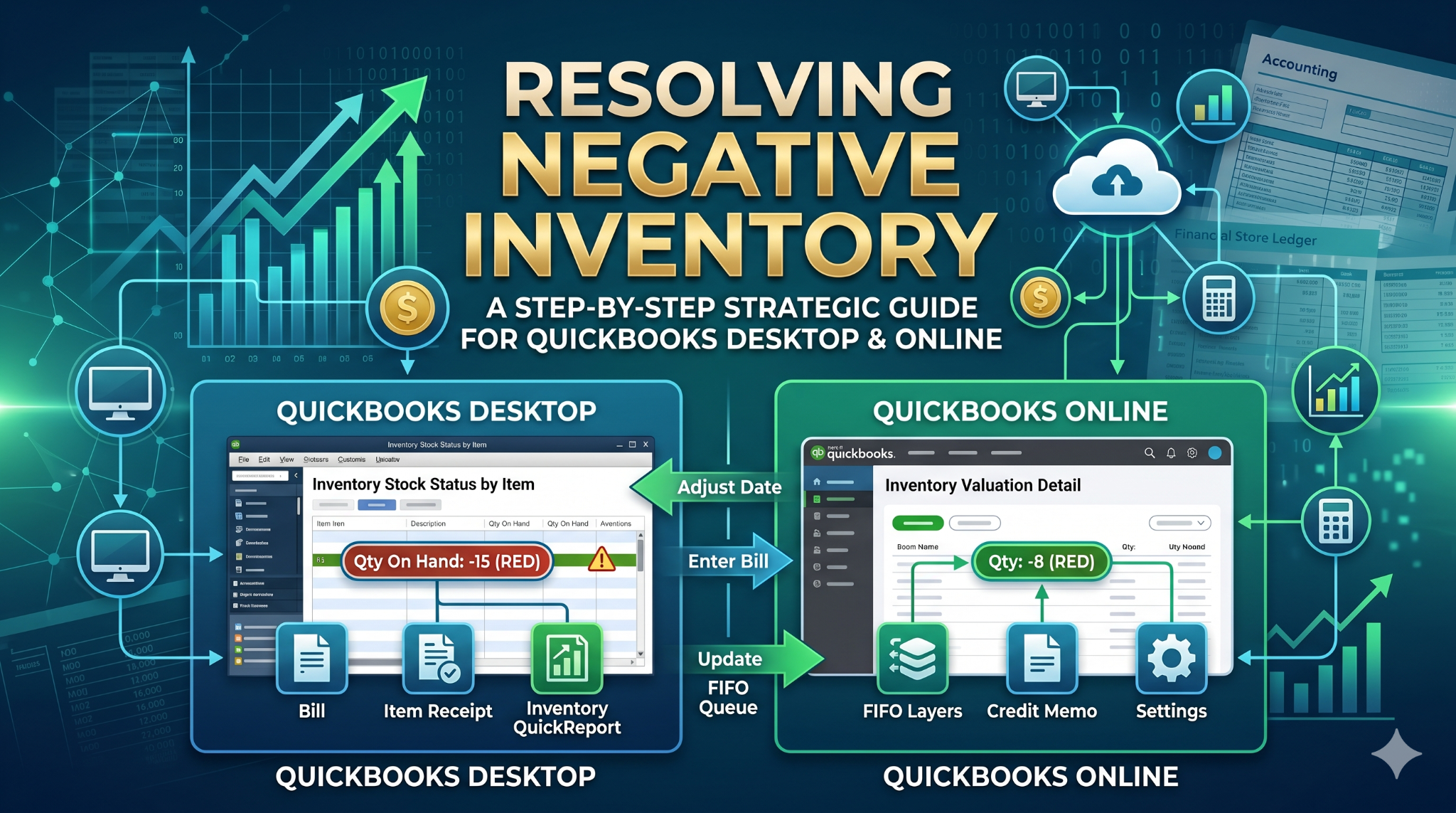
Maintaining inventory integrity is the cornerstone of accurate financial reporting. When your QuickBooks Desktop or QuickBooks Online file indicates negative inventory quantities, it triggers a cascade of accounting discrepancies that can distort your Balance Sheet, Profit and Loss statements, and Cost of Goods Sold (COGS).
We have developed this comprehensive guide to provide the most effective methodologies for identifying, correcting, and preventing negative inventory to ensure your books remain audit-ready and analytically sound.
The Financial Implications of Negative Inventory Quantities
Before addressing the “how,” we must address the “what happens” regarding your data. QuickBooks is designed to calculate COGS based on the cost of the item at the time of sale. When you sell an item you do not “have” in the system, QuickBooks is forced to make an assumed cost calculation.
- COGS Distortion: QuickBooks may use the average cost or the last known cost, which often leads to significant fluctuations once the actual purchase is finally recorded.
- Balance Sheet Inaccuracy: Your Inventory Asset account will reflect a negative value, which is an accounting impossibility for physical goods.
- Performance Issues: In QuickBooks Desktop, extensive negative inventory can lead to data fragmentation and slower report generation speeds.
Root Cause Analysis: Why Inventory Goes Negative
We frequently observe that negative inventory is rarely a result of software “glitches” and is almost always a byproduct of workflow timing. Understanding these triggers is the first step toward remediation.
- Late Entry of Purchase Orders/Bills: Selling items before the corresponding Bills or Item Receipts are entered into the system.
- Incorrect Unit of Measure (UOM): Selling in “eaches” while purchasing in “cases” without a properly configured conversion.
- Data Entry Errors: Entering the wrong item on a Sales Receipt or Invoice.
- Date Discrepancies: Recording a sale date that precedes the purchase date of the stock.
Resolving Negative Inventory in QuickBooks Desktop
QuickBooks Desktop handles inventory through an average cost method. To fix negative balances here, a systematic approach to dating and documentation is required.
Step 1: Identifying the Extent of the Issue
We recommend running the Inventory Stock Status by Item report. Filter this report to show only items with an “On Hand” quantity of less than zero. This provides your “hit list” for corrections.
Step 2: The Date Alignment Method
The most common fix is ensuring the Purchase Transaction date is on or before the Sales Transaction date.
- Navigate to the Inventory Item Center.
- Select the problematic item and view the QuickReport.
- Locate the first instance where the quantity drops below zero.
- Find the corresponding Bill or Item Receipt that replenishes that stock.
- If the physical stock arrived before the sale, adjust the transaction date of the Bill to reflect the true arrival date.
Step 3: Utilizing Inventory Adjustments
If the negative balance is due to a physical count discrepancy rather than a timing issue:
- Go to Inventory > Adjust Quantity/Value on Hand.
- Set the Adjustment Date to a period before the negative balance occurred.
- Select the Adjustment Account (usually an Inventory Shrinkage or COGS account).
- Enter the New Quantity to bring the balance to zero or the actual physical count.
Correcting Negative Inventory in QuickBooks Online (QBO)
QuickBooks Online utilizes the First-In, First-Out (FIFO) inventory valuation method. Because FIFO tracks the specific cost of the oldest unit in stock, negative inventory in QBO can cause “cascading” errors in your tax liability.
The “Inventory Valuation Detail” Audit
Run the Inventory Valuation Detail report. This report is superior for QBO users because it shows the exact point where the FIFO “queue” was broken.
Step 1: Correcting Historical Transactions
If you discover that a bill was simply forgotten:
- Create the Bill or Expense for the purchase.
- Crucial: Ensure the Payment Date or Bill Date is dated prior to the earliest invoice that caused the negative balance. QBO will automatically recalculate the FIFO layers once the stock is added.
Step 2: Handling Sales Returns
Frequently, negative inventory is caused by incorrectly processed returns. If a customer returns an item, do not simply delete the invoice.
Use a Credit Memo and ensure the “Restock Inventory” box is checked. This returns the unit to the “On Hand” count and corrects the asset account.
Advanced Troubleshooting: The Value Adjustment
Sometimes the quantity is correct, but the Inventory Asset Value is negative. This occurs when items are sold, then the cost of the item is changed retroactively in the Item List.
To fix this:
- Open the Inventory Value Adjustment tool.
- Select Total Value adjustment instead of Quantity.
- Enter the correct Current Value of the stock.
QuickBooks will create an offsetting entry to COGS, re-aligning your Balance Sheet.
Best Practices for Preventing Future Negative Balances
1. Implement a “Strict Receiving” Policy
Never allow sales staff to invoice an item until the warehouse has confirmed the Item Receipt in QuickBooks.
If the physical stock is there but the paperwork isn’t, use a “Pending” status for the invoice.
2. Monthly Inventory Reconciliations
Treat your inventory like a bank account. Perform a physical count at the end of every month and use the Adjust Quantity on Hand tool to match QuickBooks to reality.
This prevents small errors from compounding over fiscal quarters.
3. Use QuickBooks Desktop “Warning” Settings
In QuickBooks Desktop, you can enable a safeguard:
- Go to Edit > Preferences.
- Select Items & Inventory.
- Under Company Preferences, check the box for “Warn if not enough inventory to sell.”
You can also set this to “Don’t allow negative quantities,” which acts as a hard stop for data entry errors.
4. Audit the “Negative Inventory” Report Regularly
In the Reports menu, under Inventory, there is a specific Negative Inventory Listing. Reviewing this weekly allows you to catch timing errors before the monthly close.
The Impact on Tax Filing and Audits
Tax authorities and auditors view negative inventory as a “red flag.” It suggests that the Cost of Goods Sold is estimated rather than substantiated.
By resolving these negatives before year-end, you ensure that your Gross Profit Margin is accurately represented.
When you have negative inventory, your Income Statement may show a higher-than-actual profit because the “cost” component of the sale is missing or undervalued.
Correcting this usually results in a reduction of taxable income, as the true cost of the items sold is finally recognized.
Summary of Resolution Steps
| Step | Action | Platform |
|---|---|---|
| 1 | Run Inventory Valuation Detail | Both |
| 2 | Identify the First Negative Transaction | Both |
| 3 | Enter missing Bills/Receipts | Both |
| 4 | Backdate Purchase Transactions | Both |
| 5 | Perform Quantity Adjustment | Both |
| 6 | Verify Inventory Asset vs. COGS | Both |
By following these rigorous steps, you ensure that your QuickBooks file provides a “single source of truth” for your business’s financial health.
Precision in inventory management translates directly to precision in business scaling.